Chapter 9 of the VDPMill User Guide
VDPMill Job Monitor
8.1. What is VDPMill Job Monitor?
VDPMill Job Monitor is a GUI application to apply and manipulate with jobs.
The Job Monitor connects to the VDPMill XML-RPC Server on the specified port and displays the jobs applied to the server. If it is failed to connect to the server, it tries to reconnect after a time period. Any active job can be paused/resumed or canceled and it is possible to set priority to the non finished jobs.
8.2. Launching VDPMill Job Monitor
To open VDPMill Job Monitor, launch the vdpmill-job-monitor script (the vdpmill-job-monitor.bat batch file for MS Windows) in the /bin directory located in the VDPMill installation directory.
8.3. Using VDPMill Job Monitor
Job Monitor is used to apply/pause/resume jobs and view the jobs applied to the server. It displays the jobs as a four-column table, containing ticket file name, status, priority and the job Id created to process the ticket. To use Job Monitor, the VDPMill XML-RPC Server should be started (see Section 7.3, “Configuring and Running XML-RPC Server ”).
To process a job, a ticket file should be applied. Select Apply Job from the File menu or click on the  on the processing toolbar. Select the ticket file(s) to be applied from the open file browser. The application applies the selected job tickets to the server which queues the jobs for further processing. If a ticket file contains invalid ticket data corresponding error message appears in the log and the server ignores the ticket.
It is also possible to create a new ticket. The  Create New Ticket button opens VDPMill Ticket Application (see Chapter 5, VDPMill Ticket Application ** ).
Once a job is applied it can be paused/canceled or resumed after pausing. To pause/resume/cancel job processing check the job and click on  Pause,
  Resume and
  Cancel buttons on the processing toolbar or select Pause, Resume and Cancel from the Process menu respectively.
Until the job is in process, it is possible to set its priority. To change the job's priority, select the job, change priority on the processing tool bar and press Set button. The new priority should appear for the job in the Jobs list table.
Finished jobs are always inactive and manipulations are not allowed.
For detailed information about job states and allowed operations see Section A.3, “Job States”.
Figure 8.1. VDPMill Job Monitor Interface
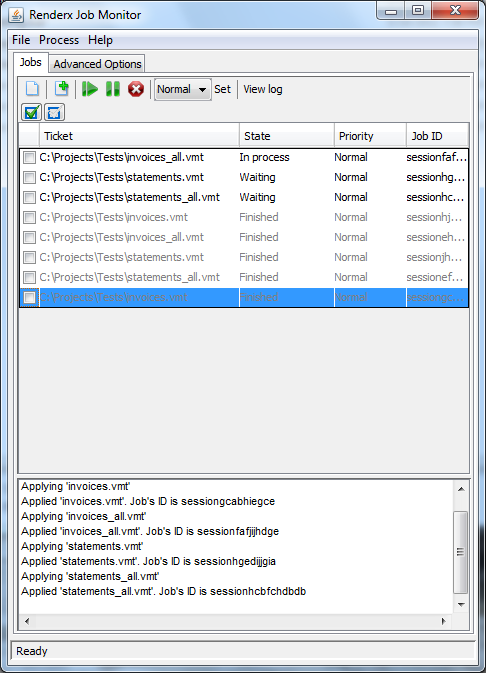
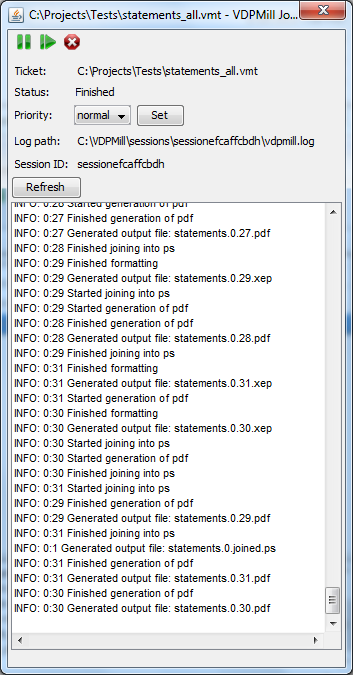
Job Monitor logs all the job operations in the log panel that is below the jobs table. It is also possible to hide/show the log panel by selecting the Show Log from the File menu. To open the particular job's log separately, select the job and press View Log button on the processing tool bar or double click on the job in the jobs list, then Job Monitor displays log messages for the job (if any) in a separated window that contains Pause/Resume/Cancel buttons as well.
Figure 8.2. VDPMill Job Monitor Log View
8.4. Job Monitor Advanced Options
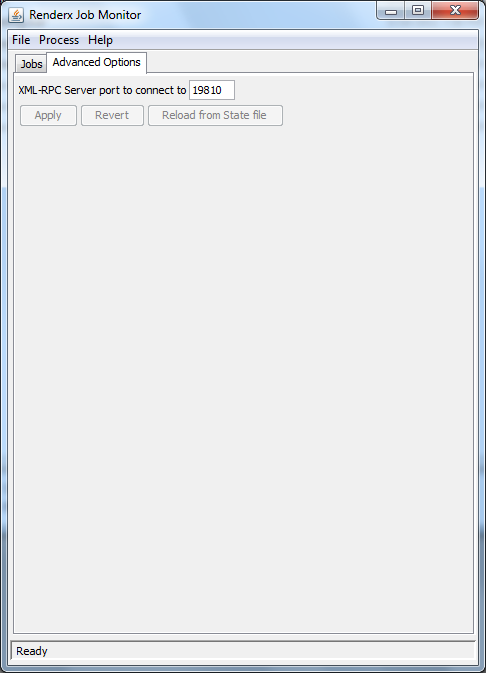
Advanced Options tab allows to define the port number to connect to the XML-RPC server. The default port number is 19810. It should be applied after changes by pressing Apply button. To revert port number value to the last value before changes press Revert button. To reload from the state file press Reload from State file button.
Figure 8.3. VDPMill Job Monitor Advanced Options