
Chapter 2 of the VDPMill User Guide
Overview
1.1. Introduction
This section contains introductory information about VDPMill.
VDPMill is a library of Java classes for splitting, collecting XML data and converting it to printable formats, such as PDF, PostScript, AFP and to the RenderX intermediate XML format XEPOUT.
The VDPMill concept is to build a complete solution for small to large businesses for collecting, composing and creating print packages of content to address batch print for mailing and distribution, as well as creating of scheduled volumes of information for archive or other forms of distribution such as email.
1.2. Document Structure
The document processing steps are described in Chapter 3, VDPMill Document Processing
VDPMill distribution includes a GUI-based tools suitable for the users that prefer graphical user interface to use VDPMill functionality interactively, to make VDPMill job tickets, apply them to VDPMill job processing engine, run, stop, configure VDPMill components. For detailed description, see Chapter 4, VDPMill Interactive GUI Application, Chapter 5, VDPMill Ticket Application ** , Chapter 7, VDPMill Control Panel**.
There are command-line interfaces (CLI) for VDPMill which provide full functionality and are suitable for users, who prefer Unix-like systems. They also can be used to call VDPMill from shell/batch scripts and Makefiles.
1.3. Installing VDPMill
To install VDPMill, run the VDPMill installer via the command line:
|
and follow the instructions given by the installer.
1.3.1. Unattended Installation
Normal, interactive installation of Java-based application assumes the user to answer several questions asked by the GUI installer. These questions may include target installation directory, answering Yes/No if you agree with the license terms, etc.
RenderX products, including VDPMill, are also capable of unattended installation. It requires an Answer File that holds answers to questions the user would normally answer to a GUI-based installation.
To create the Answer File:
Open command line and start installation in the interactive command line mode (-c option):
|
Answer the questions the installer asks until the last one ("I'm going install VDPMill:").
Figure 1.1. Creating an Answer File
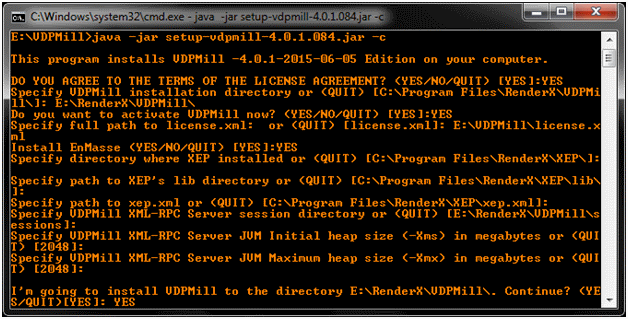
Save every answer you entered into a text file (e.g., answers.txt). An empty line assumes the default answer.
For the answers listed in the screenshot above, the answers.txt would be like this:
|
Each line represents an answer for a particular question.
Important: Important: Mind the empty lines kept intact since a missed or an extra one may lead subsequent answers being applied to wrong questions.
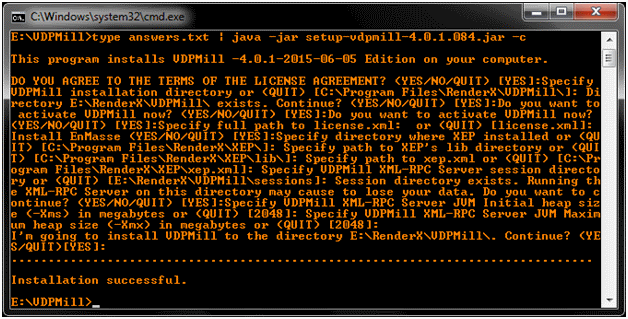
As soon as the Answer File is ready, apply this file with the installer's command line at each host the application is being installed:
Windows:
|
Linux:
|
The installer will read the answers and apply them within the installation process.
Figure 1.2. Applying the Answer File
1.4. VDPMill Package Content and Appearance in the File System
VDPMill package includes the following:
-
bin/Running scripts for VDPMill components and VDPMill Control Panel-
vdpmill(.bat), vdpmill-gui(.bat)[1] VDPMill CLI and VDPMill Interactive GUI Application running scripts respectively (for more details see Chapter 9, VDPMill Command Line Interface and Chapter 4, VDPMill Interactive GUI Application). -
vdpmill-ticket(.bat)[1] The running script for VDPMill Ticket GUI application (for detailed information see Chapter 5, VDPMill Ticket Application ** ). -
vdpmill-control-panel(.bat)[1] VDPMill Control Panel running script (for detailed information see Chapter 7, VDPMill Control Panel**). -
vdpmill-xmlrpc-server(.bat)[1] Script to run VDPMill XML-RPC Server manually (for detailed information see Section B.1, “XML-RPC Server ”). -
vdpmill-xmlrpc-server-bot(.bat)[1] This script is used to run VDPMill XML-RPC Server from VDPMill Control Panel and supports command-line arguments for Java Virtual Machine initial and maximum heap sizes and log file path. See Chapter 7, VDPMill Control Panel** and Appendix B, VDPMill XML-RPC Components ** . -
vdpmill-xmlrpc-client(.bat)[1] Script to run VDPMill XML-RPC client CLI application (for detailed information see Section B.2, “XML-RPC Client ”). -
mapforcecmd.exeAltova MapForce command-line driver. This file appears in the file system, if MapForce integrated version if VDPMill is installed.
-
-
conf/VDPMill configuration files (for details see Chapter 2, VDPMill Configuration for). -
doc/VDPMill User Guide, license text files. -
lib/VDPMill JAR files, L2FPROD JAR files, Apache XML-RPC JAR files. -
samples/VDPMill usage samples. -
EnMasseEnMasse (appears if the "Install EnMasse" option has been chosen in the installer).
VDPMill components store intermediate and temporary data in the file system during running. They use the following files and directories:
-
<TMP>/xeptmpThe directory where the temporary files created by IREn during final output files generation in VDPMill Interactive GUI Application are stored .<TMP>is the Operating System temporary folder. -
<TMP>/vdpmillserverThe directory where the temporary files created by VDPMill XML-RPC Server are stored. -
<HOME>AppData/Local/vdpmillor<HOME>/.vdpmillThe directory where the VDPMill settings and intermediate files generated during processing are stored.<HOME>is the user's home directory running VDPMill. -
Session directory for VDPMill Control Panel. This directory is used by VDPMill Control Panel and VDPMill XML-RPC Server to store VDPMill job processing sessions, log files and auxiliary data. After the path is set during the VDPMill installation it can be modified by using VDPMill Control Panel or by editing
conf/controlpanel.conffile manually.
Important: Important: VDPMill should have full access to the directories listed above.
1.4. Uninstalling VDPMill
To uninstall VDPMill, remove the VDPMill installation directory and all its content. Also remove the directories and files listed in the list above.
[1] Everywhere throughout this guide, extensions are shown in brackets for batch files for Windows-based computer systems; the names without these extensions refer to shell files for Unix- and Linux-based systems and Mac OS X.