
Chapter 7 of the VDPMill User Guide
How To Use XML Generators
6.1. What is an XML generator?
In VDPMill terms, an XML generator is an executable file that takes two command-line arguments (the input file in any format and the output XML file), runs modally (without returning the control until it finishes running) and returning 0 on successful generation and a positive integer on failure. The generated XML file becomes an input file for VDPMill Ticket and VDPMill Interactive applications.
Note: Note:
Altova MapForce command-line driver
To use Altova MapForce with VDPMill, you need to have a special command-line driver which provides the aforementioned functionality for MapForce. You may use your own driver which complies with the requirements above or use the one which is developed by RenderX. It takes a MapForce document (
.mfd) file as the first command-line argument and generates XML file using MapFore API. The generated XML is stored in the file specified by the second command-line argument. Depending on the distribution package you have received, this file may or may not be automatically installed (thebin\mapforcecmd.exefile in the VDPMill installation directory on the Windows platforms) during the VDPMill installation. If the file has not been installed, you may obtain it separately from RenderX.
6.2. Using XML Generators
XML generators are useful when the input XML files need to be generated from some data providers, such as databases or web-services, or the input XML stream needs to be modified by an external application.
Procedure 6.1. To use an XML generator:
-
Press
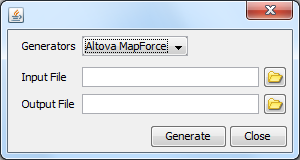
 Generate XML... button in VDPMill Ticket or VDPMill Interactive applications. The XML generators dialog is displayed:
Figure 6.1. XML Generators Dialog
-
Choose the generator in
 Generators list.
 -
Click
 Browse button to browse for the input file. The file open dialog box is displayed.
 -
Browse for the input file.
-
Click
Browse button to browse for the output XML file. The file save dialog box is displayed. -
Click
 Generate button to generate the XML file.
Important: Important:
Modal Workflow
The application will stop responding until the XML generator returns control back to the application.
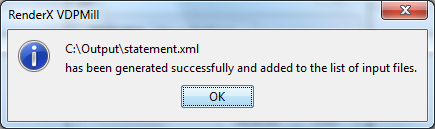
Upon successful generation, the generated XML file is added to the list of the input files in VDPMill Ticket or VDPMill Interactive application:
Figure 6.2. Successful Generation of an XML file
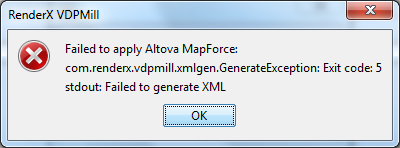
Upon failure, a message box is displayed with standard error and standard output messages coming from the XML generator:
Figure 6.3. XML Generation Failure
Important: Important: The vdpmill.confconfiguration file. For more details, see Section 6.3, “How To Configure XML Generators”.
6.3. How To Configure XML Generators
VDPMill Interactive and VDPMill Ticket applications use XML generators, as configured in the vdpmill.conf file. Users are free to configure VDPMill to use any suitable executable as an XML generator. To add a new XML generator to the vdpmill.conf file add a nested xml-generator element to the xml-generators element in vdpmill.conf file (add the xml-generators element first, if it doesn't exist).
Here is an example of a new XML generator configured:
|
For more details, see vdpmill.conf description. The input-file-extensions attribute is a slash-separated (/) list of file extensions, which is used to browse for the input file in XML Generators dialog box.
VDPMill Altova MapForce Edition is preconfigured to use MapForce as an XML generator. In this version, the default vdpmill.conf file includes the following xml-generator element:
|