
Chapter 5 of the VDPMill User Guide
VDPMill Interactive GUI Application
4.1. What Is VDPMill Interactive GUI Application?
VDPMill contains a user-friendly GUI tool called the VDPMill Interactive Application. Use of VDPMill Interactive Application simplifies the whole functionality of VDPMill.
VDPMill Interactive application look and feel varies depending on the operating system the application is running on.
4.2. Launching VDPMill Interactive Application
To open VDPMill Interactive, launch the vdpmill-gui script (the vdpmill-gui.bat batch file for MS Windows) in the /bin directory located in the VDPMill installation directory.
4.3. Processing Files Using VDPMill Interactive
4.3.1. Adding Files
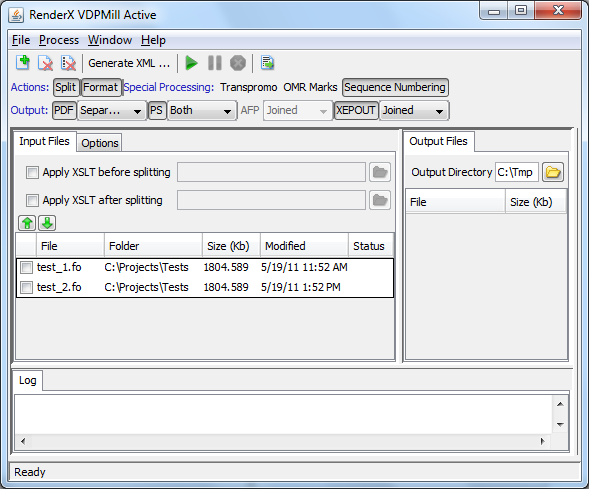
To process a file, first add it to the list of input files.
Procedure 4.1. To add an existing XML or XSL-FO file:
-
Click File from the main menu.
The File menu is displayed.
-
click Add ... or press Ctrl+O from the File menu.
The file open dialog box is displayed.
-
Browse for the files you wish to add.
The files are added to the Input Files list within VDPMill Interactive.
If you need to exclude files, select the appropriate checkboxes in the list of input files and click the
 Remove button on toolbar or select Remove Selected from the File menu.
It is also possible to move selected input files up and down using
 Up and
  Down buttons or sort by clicking on the column titles.
Figure 4.1. Input files displayed in VDPMill Interactive
4.3.2. Processing Files
Once the files are added, they can be processed with VDPMill and output files will be generated in the chosen output format(s).
Procedure 4.2. To process XML files:
-
Select Apply XSLT and specify an XSLT stylesheet (use the
 Browse... button next to the text field), if the input files should be transformed before and/or after splitting.
 -
Select the desired actions (
formatand/orsplit) on the main toolbar above the Input Files list. -
Select output format(s) for result files and output document types (
separated,joined,both). -
Choose the output directory by clicking the
Browse... button or by typing the full directory path in the Output Directory text box. -
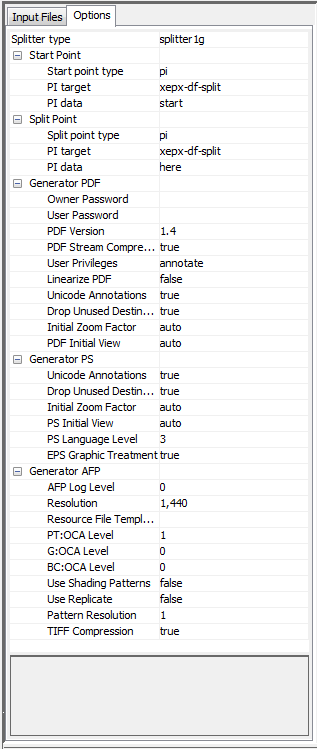
Adjust splitting and final format generation option on the
Optionspanel.Figure 4.2. Processing Options
-
Press the
 Process button. The logging information will be displayed in the Input Files tab. When processing is in progress, it can be paused by clicking the
  Pause button or interrupted by clicking
  Cancel button.
If an error occurs during processing, VDPMill writes an error message to the log and pauses processing. Then processing can be resumed or canceled. If VDPMill Interactive exits when processing is paused, it stores processing progress and it is possible to continue processing on the next run.
4.3.3. Project Save/Load
It is possible to save current project state and load it later to process. Project file is an XML job ticket which contains all defined project specific settings and document processing options. For VDPMill Job Ticket format descriptionSee Appendix C, Job Ticket Format Description**.
To save the project select Save Project... from File menu. Select the directory and filename in directory browser and save the project file.
To load the project select Open Project... from File menu, choose the saved or manually created project file. All settings defined in project file should be loaded.
4.3.4. Export Log
To export log messages written in Log area select Export Log... from File menu or press  Export Log button on Actions tab.
4.4. Configuring VDPMill in VDPMill Interactive
VDPMill parameters can be configured by using the GUI.
Procedure 4.3. To configure VDPMill:
-
Select Window from the main menu. The Window menu is displayed.
-
Make sure that the Configuration menu item is checked.
-
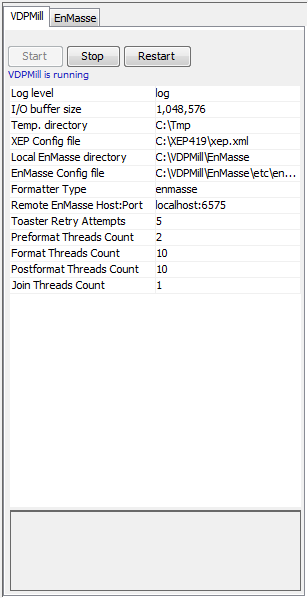
Select the VDPMill tab to change VDPMill core options.
Figure 4.3. VDPMill
-
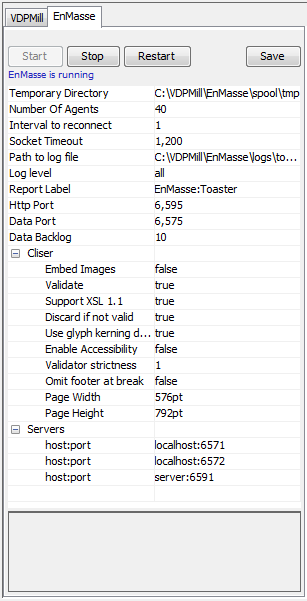
Select the EnMasse tab to change EnMasse settings.
Figure 4.4. EnMasse settings
For a detailed description of VDPMill parameters and component types see Chapter 2, VDPMill Configuration and Section 7.4, “Configuring VDPMill Core Parameters ”.