
Chapter 5 of the IREn User Guide
Configuring IREn
5.1. Configuring IREn using IREn Assistant
This section describes how to configure IREn according to your preferences by using IREn Assistant.
To configure IREn:
-
From the main menu, select Options.
The Options menu is displayed.
-
From the Options menu, select Edit.
The IREn Configuration dialogue box is displayed.
-
Click the Main tab, the Backends tab, the Languages tab or the Fonts tab.
For See Main tab Section 5.1.1 Backends tab Section 5.1.2 Languages tab Section 5.1.3 Fonts tab Section 5.1.4 -
Configure the required parameters and click Save to save and close, or Exit to close without saving your changes.
5.1.1. Configuring Main Settings
The default configuration settings can be set in the Main tab.
Figure 5.1. IREn Configuration Main tab
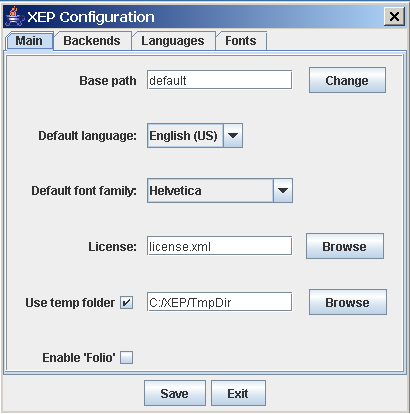
Table 5.1. IREn Configuration Main Tab Parameters
| Parameter | Possible Values | Description |
|---|---|---|
| Base Path | free text | The location of the configuration file (XEP.xml). The Base path is used to resolve relative URLs where parameters accept URLs as values.
Click Change to select the location of the configuration file. |
| Default Language | all supported languages, unspecified.
Default: English (US) | Select the language to use when no language is specified. |
| Default font family | all supported font families, unspecified. | Select the font family to use when no font family is specified. |
| License | free text | The location of the IREn license file.
Click Browse to select the location of the license file. |
| Use temp folder | checked, unchecked
Default: unchecked | Check to enable writing temporary files to disk. Once checked, click Browse to set the path to the directory where the temporary files are written. |
5.1.2. Configuring Backends
Using Backends, you can control certain properties in the output documents. There are different available properties for each output type. Select the output type and then configure the properties for the specific output type selected. Refer to the appropriate figure and table for more information on each output type.
To select the output type:
-
On the Backends tab, click Select backend.
-
Select PDF, PostScript, AFP, SVG, HTML or PPML.
The Backend Parameters screen populates with parameters based on the selected backend.
Configuring the Backend for PDF Files
Figure 5.2. IREn Configuration Backend's tab for PDF files
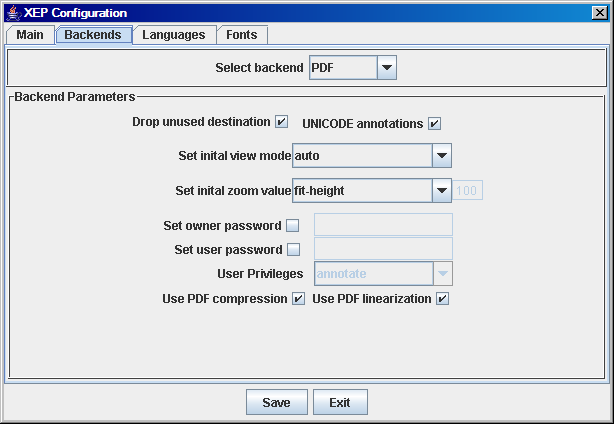
Table 5.2. IREn Configuration Backends Tab PDF Parameters
Parameter
Possible Values
Description
Select backend
PDF, PostScript, AFP, SVG, HTML, PPML
Default: PDF
Select the output type for which you are configuring the backend.
Backend Parameters
Drop unused destination
checked, unchecked
Default: checked
Specify whether named destinations are created for objects not referenced within the document.
UNICODE annotations
checked, unchecked
Default: checked
Enable or disable use of Unicode to represent PDF annotations strings, such as bookmark text and document info.
Set initial view mode
-
auto - If there are bookmarks in the document, the bookmark pane is displayed. Otherwise, all auxiliary panes are hidden.
-
show-none - All auxiliary panes are hidden.
-
show-bookmarks - The bookmarks pane is displayed.
-
show-thumbnails - The thumbnails pane is displayed.
-
full-screen - The document is displayed in full-screen mode.
Default: auto
Set the view mode to be activated in the PDF viewer when the PDF file is rendered and viewed.
Set initial zoom value
-
auto - Page scaling is not specified.
-
fit - The page is scaled to fit completely into the view port.
-
fit-width - The page is scaled so that its width matches the width of the view port.
-
fit-height - The page is scaled so that its height matches the height of the view port.
-
number-or-percentage - The page is scaled by the number or percentage specified in the enabled box.
Default: auto
Specify the magnification factor to be applied when the file is first opened in the PDF viewer.
Set owner password
checked, unchecked
Default: unchecked
If the check box is checked, then the text box is enabled so that you can type in a password.
Select this option to set an owner password for the PDF document. Owner passwords give the owner full control over the PDF document.
Set user password
checked, unchecked
Default: unchecked
If the check box is checked, then the text box is enabled so that you can type in a password.
Select this option to set a user password for the PDF document. Holders of user passwords are subject to access restrictions specified in User Privileges.
User Privileges
-
annotate - Enables adding annotations to the document and changing form field values.
-
copy - Enables copying text and images from the document onto the clipboard.
-
modify - Enables editing the document.
-
Print - Enables printing the document.
Default: annotate
Select the privilege for users accessing the resulting document with user password.
Use PDF compression
checked, unchecked
Default: checked
Check to compress content streams in PDF using Flate algorithm.
Use PDF linearization
checked, unchecked
Default: unchecked
Check to linearize (or optimize for the Web) the PDF output.
Configuring the Backend for PostScript Files
Figure 5.3. IREn Configuration Backends tab for PostScript files
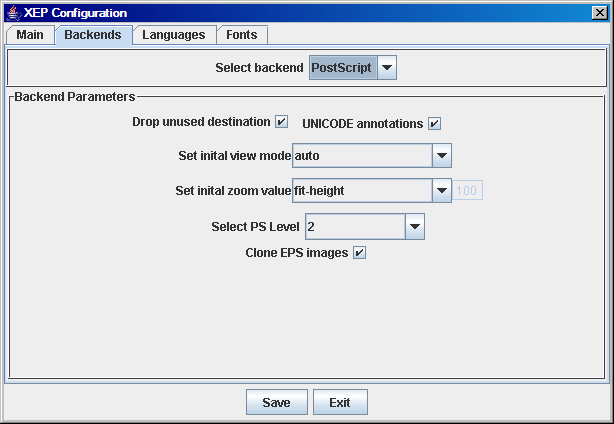
Table 5.3. IREn Configuration Backend Tab for Configuring PostScript Parameters
Parameter
Possible Values
Description
Select backend
PDF, PostScript, AFP, SVG, HTML, PPML
Default: PDF
Select the output type for which you are configuring the backend.
Backend Parameters
Drop unused destination
checked, unchecked
Default: checked
Specify whether named destinations are created for objects not referenced within the document.
This information is utilized when the file is further converted to PDF.
UNICODE annotations
checked, unchecked
Default: checked
Enable or disable use of Unicode to represent PDF annotations strings, such as bookmark text, and document info.
This information is utilized when the file is further converted to PDF.
Set initial view mode
-
auto - If there are bookmarks in the document, the bookmarks pane is displayed. Otherwise, all auxiliary panes are hidden.
-
show-none - All auxiliary panes are hidden.
-
show-bookmarks - The bookmarks pane is displayed.
-
show-thumbnails - The thumbnails pane is displayed.
-
full-screen - The document is displayed in full-screen mode.
Default: auto
The PDF document may contain definition of default view mode which is activated by the PDF viewer upon rendering and viewing the file. This option allows specifying this mode.
This information is utilized when the file is further converted to PDF.
Set initial zoom value
-
auto - Page scaling is not specified.
-
fit - The page is scaled to fit completely into the view port.
-
fit-width - The page is scaled so that its width matches the width of the view port.
-
fit-height - The page is scaled so that its height matches the height of the view port.
-
number-or-percentage - The page is scaled by the number or percentage specified in the enabled box.
Default: auto
Specify the magnification factor to be activated when the file is first opened in the PDF viewer.
This information is utilized when the file is further converted in PDF.
Select PS Level
2,3
Default: 3
Select the target PostScript language level.
Note: If the language level is set to 2, some advanced features and improved font definitions are not available.
Clone EPS images
-
checked - EPS graphics are pasted into the output stream at each occurrence. This may lead to a substantial growth of the resulting file size.
-
unchecked - EPS graphics are posted into the PostScript form. This minimizes the file size, however, some EPS images cannot be processed this way and it may corrupt the PostScript code.
Default:checked
Specify whether EPS graphics are included in the PostScript output using the forms mechanism, or by pasting their contents at each occurrence.
Configuring the Backend for AFP Files
Figure 5.4. IREn Configuration Backends tab for AFP files
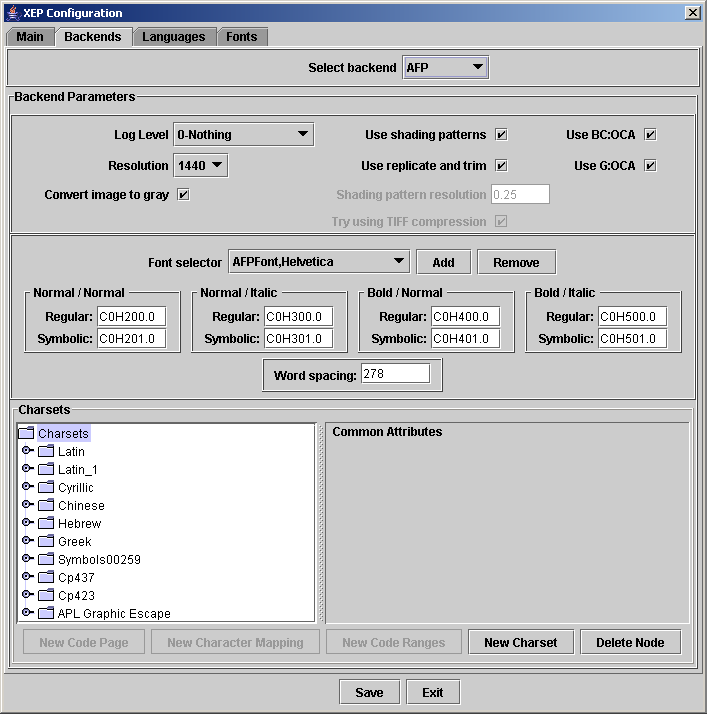
Table 5.4. IREn Configuration Backends Tab AFP Parameters
Parameter
Possible Values
Description
Select backend
PDF, PostScript, AFP, SVG, HTML, PPML
Default: PDF
Select the output type for which you are configuring the backend.
Backend Parameters
Log Level
0,1,2
Default: 0 (Nothing)
Select a number to determine the level of log detail.
0- Nothing1- Warnings only2- Warnings and information messages
Resolution
positive integer
Default: 1440
Defines which document resolution will be output within the document. It must be positive integer value supported by target AFP device
Convert images to gray
checked, unchecked
Default: unchecked
If checked, turns on embedding of raster images as grayscale images, 8 bit per pixel, uncompressed.
Unchecked - embed raster images in their original format
Use shading patterns
checked, unchecked
Default: checked
Specifies whether grayscale-filled areas should be filled with bi-level pattern. Percentage rate of black points will be closest match to required grayscale value.
Checked- shading patterns will be usedUnchecked- shading patterns will not be used
Use replicate and trim
checked, unchecked
Default: unchecked
property specifies whether the "replicate-and-trim" feature will be used for shading patterns.
Checked- "replicate-and-trim" is usedUnchecked- "replicate-and-trim" is not used
Shading pattern resolution
floating point number
Default: 1.0
Defines zoom factor for shading pattern raster.
Try using TIFF compression
checked, unchecked
Default: checked
This option allows the user to specify whether AFP backend attempts to compress shading patterns raster images with TIFF encoding.
Checked- AFP Backend attempts compressing shading pattern rastersUnchecked- AFP Backend does not attempt compressing shading pattern rasters
Use BC:OCA
checked, unchecked
Default: checked
Defines the upper level of BC:OCA commands subset.
Unchecked- Do not use BC:OCA commandsChecked- Use Level 1 only
Use G:OCA
checked, unchecked
Default: checked
Defines the upper level of G:OCA commands subset.
Unchecked- Do not use G:OCA commandsChecked- Use Level 1 only
Please refer to Section 6.8 of this document for details.
AFP Fonts
To view and edit an AFP font and its sub values:
-
Click the AFPFonts drop down box (see Figure 5.4).
-
Select the font you wish to view/edit.
Note: AFP font names are comprised of the word
<AFPFont>followed by a comma and the IREn font name, such as<AFPFont, Verdana>.All sub values are populated based on the font selected.
-
View or edit all AFP font sub values.
To add an AFP font:
-
Click AddAFPFont (see Figure 5.4).
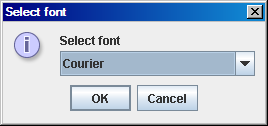
A dialog box opens containing a list of all supported fonts as displayed in the following figure:
Figure 5.5. Add Font
-
Select the font you wish to add to the AFP fonts.
-
Click OK to add the font or Cancel to close the box without adding a new font.
The selected font is added.
To remove an AFP font:
-
From the AFPFonts drop down box, select the font you wish to remove (see Figure 5.4).
-
Click RemoveAFPFont.
The selected font is removed.
Configuring the Backend for SVG Files
Figure 5.6. IREn Configuration Backend's tab for SVG files
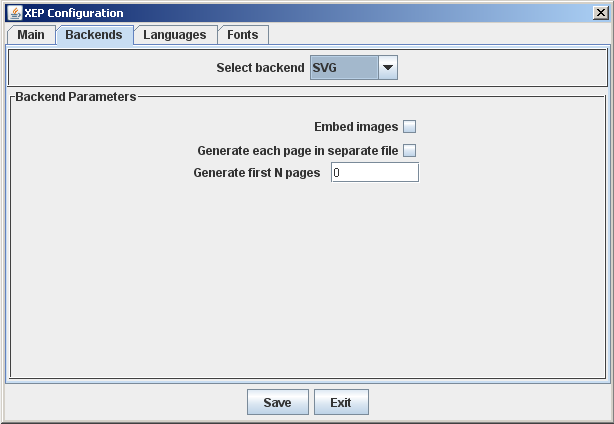
Table 5.5. IREn Configuration Backends Tab SVG Parameters
Parameter
Possible Values
Description
Select backend
PDF, PostScript, AFP, SVG, HTML, PPML
Default: PDF
Select the output type for which you are configuring the backend.
Backend Parameters
Embed images
checked, unchecked
Default: unchecked
If checked, generator embeds external images referenced in the document in the resulting document instance as Base64 strings.
Note: SVG images are always embedded as inline SVG.
XEPOUT images content will be converted into appropriate SVG elements
Generate each page in separate file
checked, unchecked
Default: unchecked
If checked, output document is a zip files with collection of SVG files, where each file represents a separate page.
Generate first N pages
number of pages
Default: 0
Specifies how many pages to generate (0 means all pages).
Configuring the Backend for PPML Files
Figure 5.7. IREn Configuration Backend's tab for PPML files
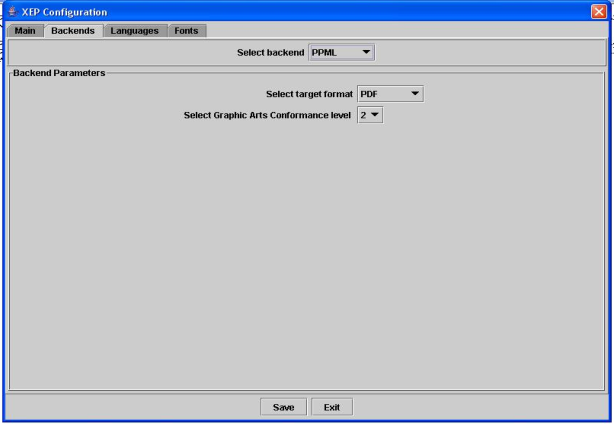
Table 5.6. IREn Configuration Backends Tab PPML Parameters
Parameter
Possible Values
Description
Select backend
PDF, PostScript, AFP, SVG, HTML, PPML
Default: PDF
Select the output type for which you are configuring the backend.
Backend Parameters
Select target format
PDF, PS
Default: PS (PostScript)
Select format for internal pages.
PS- PostScriptPDF- PDF
Select Graphic Arts Conformance level
-1,0,1,2
Default: 0
Define wich image-files added to internal resiurces "as is" and wich will be rendered.
0- Add all files, according to PPML 2.2 Specification.1- Add only TIFF and JPEG files as level 12- Add only TIFF and JPEG files as level 2
Configuring the Backend for XHTML Files
Figure 5.8. IREn Configuration Backend's tab for XHTML files
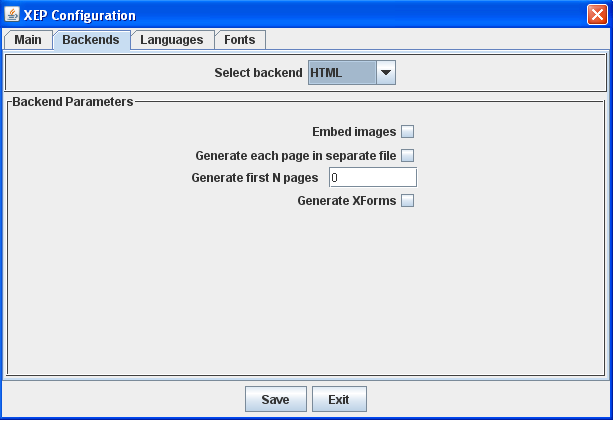
Table 5.7. IREn Configuration Backends Tab XHTML Parameters
Parameter
Possible Values
Description
Select backend
PDF, PostScript, AFP, SVG, HTML, PPML
Default: PDF
Select the output type for which you are configuring the backend.
Backend Parameters
Embed images
checked, unchecked
Default: unchecked
If checked, generator embeds external images referenced in the document in the resulting document instance as Base64 strings.
Note: SVG images are always embedded as Base64 strings.
Generate each page in separate file
checked, unchecked
Default: unchecked
If checked, output document is a zip files with collection of XHTML files, where each file represents a separate page. The archive does also contain pages index.
Generate first N pages
number of pages
Default: 0
Specifies how many pages to generate (0 means all pages).
Generate XForms
checked, unchecked
Default: unchecked
Specifies whether the XHTML backend generates XForms.
5.1.3. Configuring Languages
Languages can be configured in the Languages tab.
Figure 5.9. IREn Configuration Languages tab
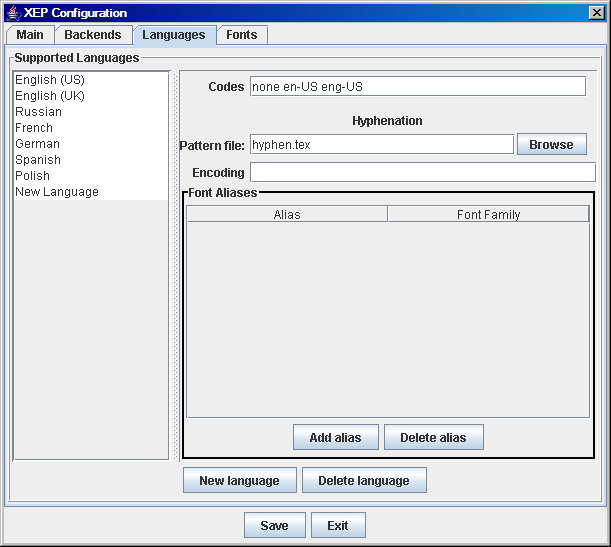
Table 5.8. IREn Configuration Languages Tab
Parameter
Possible Values
Description
Supported Languages
Codes
free text
A list of codes used to refer to the language in the XSL-FO input data.
Note: Separate multiple codes with spaces.
Pattern File
free text
The location of the Pattern file associated with the language selected.
Click Browse to select the location of the Patten file.
Encoding
Default: ISP-8859-1
The encoding of the pattern file.
Font Aliases
Font aliases are activated when the language which is associated with them is selected. They take precedence over the aliases specified in the fonts section and may mask them.
Alias
free text
Provide an alternate name for a font family.
Font Family
free text
Select the font family corresponding to the alias.
Add alias
Click to add a new alias.
Delete alias
To delete an alias, highlight the alias you wish to delete and click Delete alias.
5.1.4. Configuring Fonts
Fonts are categorized into families, which is the basic configuration unit in IREn, and then further into groups. A font family is a set of fonts that share a common design but differ in stylistic attributes, such as upright or italic, light or bold. A group consists of several font families wrapped into one container element. Groups can be nested, forming complex font hierarchies.
In the left column, there is the font hierarchy that contains groups, families, and fonts. Click on a node to display and edit its common attributes. Double-click a node to open its children.
Figure 5.10. IREn Configuration Fonts tab
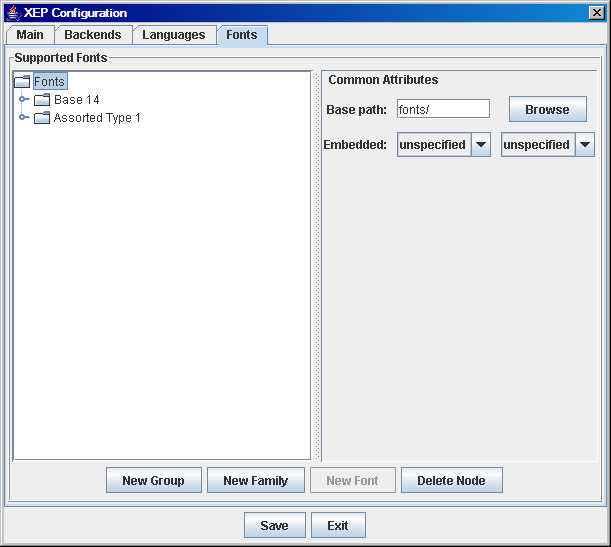
Table 5.9. IREn Configuration - Fonts Tab Parameters
Parameters
Possible Values
Description
Supported Fonts
Common Attributes
Base Path
free text
Specifies a common base directory for a group of font families that form a package. Click Browse to select a file location.
Embedded
unspecified, true, false
Specifies whether the font is embedded in the document or it is external to the file.
Note: If the font is external, the rendered file can only be viewed on systems that have the font configured for use with viewing or printing the application.
Subsetted
unspecified, true, false
Specifies whether the font is subsetted.
Note: If a font is subsetted, the file is not editable.
Font Aliases
Alias
free text
Provide an alternate name for a font family.
Font Family
all font families defined
Select the font family corresponding to the alias.
Add alias
Click to add a new alias.
Delete alias
To delete an alias, highlight the alias you wish to delete and click Delete alias.
New Group
Click to create a new group.
New Family
Click to create a new family.
New Font
Click to create a new font.
Delete Node
Click on the node you wish to delete and click Delete Node to delete.
5.2. Configuring IREn via the IREn Configuration File
This topic describes in detail how to configure IREn by creating or modifying an IREn configuration file.
5.2.1. Configuration Structure
IREn is controlled by a single configuration file which contains core formatting options, fonts available to the formatter, and language-specific data.
The IREn configuration file must always be accessible to the formatter. Methods for locating the configuration file are platform-dependent. Please refer to specific platform documentation for details. By default, the formatter looks for a file named xep.xml in the directory where it is currently running.
The configuration file is an XML document in a special namespace: "http://www.renderx.com/XEP/config". The root of the configuration file is a <config> element which includes three major subsections:
-
<options>- Options for IREn rendering core and backends are defined inside the<options>element. -
<fonts>- Fonts configuration is contained inside the<fonts>element. -
<languages>- Hyphenation and language-dependent parameters are configured in the<languages>element.
Some parameters can accept URLs as values. In such cases, the location of the configuration file is used as a base to resolve relative URLs. The base URL can be overridden for any subtree of the configuration file, by utilizing the xml:base attribute.
Note: All relative URLs in parameter values stored in a referenced file are resolved with respect to that file, rather than the top-level configuration file. Attribute
xml:basein the referrer file has no effect on URLs that are contained in another file.
The use of a monolithic configuration file is usually the most convenient way to store the configuration, as it simplifies switching between different IREn configurations, and facilitates environmental tuneup. However, occasionally it may be wiser to move parts of the configuration into separate files, such as when font configuration is reused across multiple setups. The configuration file supports modularization. Any container element can be moved into a separate XML file whose location is specified by an href attribute.
5.2.2. Core Options
IREn is controlled by several options which can be set in the configuration file. An option is defined by an <option> element. It has a name and an associated value: name=value. IREn core options are always specified as direct children of the <options> element. The following core options are defined for IREn 4.18:
Table 5.10. Core Options
| Option | Possible Values | Description |
|---|---|---|
LICENSE | free text Default: | The location of the license file. At startup, IREn looks for a license file, and only runs if the signature on the license matches the public key associated with the specific edition of the formatter. Additionally, this file is used as an access key to IREn online update service. The parameter can be specified either as a file name in the local file system, or as a URL. In addition to common protocols, |
VALIDATE | true, false Default: true | Controls the input validation.
|
DISCARD_IF_NOT_VALID | true, false
Default: true | Controls the termination of processing upon unsuccessful validation. |
STRICTNESS |
| Determines the validator's level of strictness. |
SUPPORT_XSL11 | true, false
Default: true | Turns on/off XSL-FO 1.1 support. |
ENABLE_FOLIO | true, false
Default: false | Turns on/off support for <fo:folio-prefix> and <fo:folio-suffix> on elements <fo:page-number-citation> and <fo:page-number-citation-last>.
|
TMPDIR | Default: none | The path to the directory for temporary files. If set, this parameter must point to a writable directory, specified either as a path in the local file system or as a file URL. To disable writing temporary files to disk, specify
|
BROKENIMAGE | free text Default: | The icon inserted as a replacement for broken or missing images. The parameter can be specified either as a file name in the local file system, or as a URL. In addition to the common protocols, |
PAGE_WIDTH | Default: 576pt (8 in) | Sets the default page width. |
PAGE_HEIGHT | Default: 792pt (11 in) | Sets the default page height. |
KERN | true, false
Default: true | Controls whether the formatter uses or ignores glyph kerning data to determine character positions. |
ENABLE_ACCESSIBILITY | true, false
Default: false | Controls whether the formatter uses a special mode to create accessible PDF documents. |
ROLE_MAP | free text | Path to PDF Structure Tags configuration file.
The parameter can be specified either as a file name in the local file system, or as an URL. In addition to the common protocols, This configuration file can be used to re-map roles of PDF Structure Tags or to eliminate some input
|
OMIT_FOOTER_AT_BREAK | true, false
Default: false | Defines whether tables footers are omitted at breaks by default. |
SPOT_COLOR_TRANSLATION_TABLE | free text | Path to Spotcolor-to-CMYK translation table file for use in rgb-icc() function with #SpotColor pseudo profile.
The parameter can be specified either as a file name in the local file system, or as an URL. In addition to the common protocols, Default: none, all spot colors come out black.
|
IMAGE_MEMOIZE_THRESHOLD | integer Default: 0 | Controls the way SVG images in <fo:instream-foreign-object> elements and data: images are cached.
Provided that The default value 0 enables the old-style (prior to IREn 4.15) caching: disk is not used and images are cached in memory. The value 1 means that if such an image has been read back from disk more than once, if will be memoized to provide faster access. This is the correct choice for rendering to the Intermediate Format or for pure generation jobs. The value 2 suites best for running from XSL FO to PDF or PostScript. Higher values are for running more than one output generator concurrently.
|
ENABLE_PAGE_NUMBERS | true, false
Default: false | Controls how IREn internally processes page numbering.
|
5.2.3. Configuring Output Formats
IREn can render to several different output formats including PDF, PostScript, AFP, SVG, XPS, XHTML and PPML. Certain properties of output documents can be controlled in two ways:
-
Processing Instructions - The processing instructions are used to specify information that does not affect formatting and is safely ignored by the XSL-FO processors.
Each processing instruction begins with a prefix that identifies the output generator to which the instruction is addressed. For the standard PDF generator, the prefix is
<?xep-pdf-*>, for PostScript, the prefix is<?xep-postscript-*>, for AFP, the prefix is<?xep-afp-*>, for SVG, the prefix is<?xep-svg-*>, for XHTML, the prefix is<?xep-html-*> and for PPML, the prefix is<?xep-ppml-*>. Generators ignore processing instructions that do not start with their assigned prefixes. In particular, PDF generator instructions are invisible to the PostScript generator, and vice versa.Instructions that pertain to an entire document should be placed at the top of the document, before or right after the
<fo:root>start tag. Instructions that pertain to a single page of the documentation should be specified inside<fo:simple-page-master>object used to generate that page. -
Generator Options - Generator options affect the entire output document. Some features affect only parts of the input document and can only be expressed with processing instructions.
Generator Options can be used to set default settings for output generators. They are specified inside the
<options>element in the configuration file. To distinguish them from the core options, they are wrapped in the<generator-options>element. The following table describes the attribute of the<generator-options>tag:Table 5.11. Generator-Options Attributes
Attribute Possible Values Description FORMATPDF, PS, AFP, SVG, XPS, HTML, PPML Format defines the target output format for the generator. The following is an example of a fragment which turns on the linearization for the PDF generator and sets initial zoom factor to
fit-widthfor both PostScript and PDF backends:<generator-options format="PDF"> <option name="LINEARIZE" value="true"/> <option name="INITIAL_ZOOM" value="fit-width"/> </generator-options> <generator-options format="PostScript"> <option name="INITIAL_ZOOM" value="fit-width"/> </generator-options>
All options can be controlled using processing instructions, and some options can be controlled by use of generator options. The following sections describe available processing instructions and generator options as well where they can be utilized.
Unicode Strings in Annotations (PDF, PostScript)
<?xep-pdf-unicode-annotations value?>
<?xep-postscript-unicode-annotations value?>
These processing instructions enable or disable the use of Unicode to represent PDF annotations strings, such as bookmark text and document info. In PostScript, the information is coded in pdfmark operators and used for further conversion to PDF.
The following are possible values:
-
true - Enable use of 16-bit Unicode to represent annotation strings. In this mode, IREn uses 8-bit
PDF Encodingfor strings that can be represented inAdobeStandardcharacter set and 16-bit Unicode for strings containing characters not included inAdobeStandard. -
false - Unicode is not used. Annotations are always represented in 8-bit
PDF Encoding; characters not included in theAdobeStandardset are replaced by bullet symbols. This option may be used to enforce compatibility with older versions of PDF software that do not support Unicode, such as Adobe Acrobat 3.0.
Default: true
This feature can also be controlled by UNICODE_ANNOTATIONS option in the configuration file for PDF and PostScript generators.
Initial Zoom Factor (PDF, PostScript)
<?xep-pdf-initial-zoom value?>
<?xep-postscript-initial-zoom value?>
These processing instructions specify the magnification factor to be activated when the file is first opened in the PDF viewer. In PostScript, the information is coded in pdfmark operators and used for further conversion to PDF.
The following are possible values:
-
auto - Page scaling is not specified.
-
fit - The page is scaled to fit completely into the
view port. -
fit-width - The page is scaled so that its width matches the width of the
view port. -
fit-height - The page is scaled so that its height matches the height of the
view port. -
number or percentage - The page is scaled by the number or percentage specified in the enabled box.
Default: auto
This feature can also be controlled by the INITIAL_ZOOM option in the configuration file for PDF and PostScript generators.
PDF Initial View (PDF, PostScript)
<?xep-pdf-view-mode value?>
<?xep-postscript-view-mode value?>
These processing instructions set the view mode to be activated in the PDF viewer when the PDF file is rendered and viewed. In PostScript, the information is coded in pdfmark operators and used for further conversion to PDF.
The following are possible values:
-
auto - If there are bookmarks in the document, the bookmarks pane is displayed. Otherwise, all auxiliary panes are hidden.
-
show-none - All auxiliary panes are hidden.
-
show-bookmarks - The bookmarks pane is displayed.
-
show-thumbnails - The thumbnails pane is displayed.
-
full-screen - The document is displayed in full screen-mode.
Default: auto
This feature can also be controlled by the VIEW_MODE option in the configuration file for PDF and PostScript generators.
Logical Page Numbering (PDF)
<?xep-pdf-logical-page-numbering value?>
This processing instruction controls a page numbering scheme for the PDF document.
The following are possible values:
-
true - Logical page numbers are written to the PDF file.
-
false - Logical page numbers are ignored.
Default: true
Note: Adobe Acrobat has a special check box Use logical page numbers. To show logical page numbers of a PDF document, make sure this control is enabled.
This feature can also be controlled by the LOGICAL_PAGE_NUMBERING option in the configuration file for PDF generator.
Page Layout (PDF)
<?xep-pdf-page-layout value?>
This processing instruction controls initial page layout when a PDF document is open.
The following are possible values:
-
auto - Uses settings of viewer application.
-
single-page - Displays one page at a time.
-
continuous - Displays pages continuously in one column.
-
two-columns-left - Displays pages continuously in two columns, with odd-numbered pages to the left.
-
two-columns-right - Displays pages continuously in two columns, with odd-numbered pages to the right.
-
two-pages-left - Displays pages in two columns, by two pages at a time, with odd-numbered pages to the left. PDF 1.5.
-
two-pages-right - Displays pages in two columns, by two pages at a time, with odd-numbered pages to the right. PDF 1.5.
Default: auto
This feature can also be controlled by the PAGE_LAYOUT option in the configuration file for PDF generator.
PDF Viewer Preferences (PDF)
<?xep-pdf-viewer-preferences value?>
This processing instruction controls viewer preferences for a PDF document.
The value is a comma or space separated list of keywords. Each one enables the respective viewer option. The following are supported keywords:
-
hide-toolbar - Hides the viewer application's tool bars when the document is active.
-
hide-menubar - Hides the viewer application's menu bar when the document is active.
-
hide-window-ui - Hides user interface elements in the document's window (such as scroll bars and navigation controls), leaving only the document's contents displayed.
-
fit-window - Resizes the document's window to fit the size of the first displayed page.
-
center-window - Positions the document's window in the center of the screen.
-
display-document-title - Controls whether the window's title bar displays the document title taken from the "title" entry of
<rx:meta-info>. If absent, the title bar instead displays the name of the PDF file containing the document.
Default: empty list
This feature can also be controlled by the VIEWER_PREFERENCES option in the configuration file for PDF generator.
Treatment of Unused Destinations (PDF, PostScript)
<?xep-pdf-drop-unused-destinations value?>
<?xep-postscript-drop-unused-destinations value?>
These processing instructions specify whether named destinations are created for objects not referenced within the document. In PostScript, the information is coded in pdfmark operators and used for further conversion to PDF.
The following are possible values:
-
true - Named destinations are created only for objects used as targets in
internal-destinationattributes. -
false - Named destinations are created for all objects that have an
idattribute.
Default: true
This feature can also be controlled by the DROP_UNUSED_DESTINATIONS option in the configuration file for PDF and PostScript generators.
ICC Profile (PDF)
<?xep-pdf-icc-profile URL?>
These processing instructions specify a characterized printing condition. PDF/X and PDF/A-1 specifications require the presence of the characterized printing condition ( /OutputIntent entry in the PDF catalog dictionary). URL is the URI of the ICC file. It should follow the XSL-FO notation for uri-specification: url( ).
PDF/X Support (PDF)
<?xep-pdf-pdf-x value?>
This processing instruction sets PDF/X compliance level.
The following are possible values:
-
none - No PDF/X restrictions are applied.
-
pdf-x-1a - Sets PDF/X-1a compliance level. The rendered PDF will comply with the PDF-X-1a:2001 spec.
-
pdf-x-3 - Sets PDF/X-3 compliance level. The rendered PDF will comply with the PDF-X-3:2001 spec.
Default: none
PDF/A Support (PDF)
<?xep-pdf-pdf-a value?>
This processing instruction sets PDF/A compliance level.
The following are possible values:
-
none - No PDF/A restrictions are applied.
-
pdf-a-1a - Sets PDF/A-1a compliance level. The rendered PDF will comply with level A of the PDF/A-1:2005 spec.
Note:
PDF/A-1a compliant documents must be tagged. Set
ENABLE_ACCESSIBILITYcore option to true. -
pdf-a-1b - Sets PDF/A-1b compliance level. The rendered PDF will comply with level B of the PDF/A-1:2005 spec.
-
pdf-a-3b - Sets PDF/A-3b compliance level. The rendered PDF will comply with level B of the PDF/A-3:2012 spec.
Default: none
Prepress Support (PDF, PostScript)
The following processing instructions define features that support the prepress production workflow.
<?xep-pdf-crop-offset value?>
<?xep-postscript-crop-offset value?>
These processing instructions specify offsets from the meaningful content on the page to the edges of the physical media (/MediaBox entry in the PDF page dictionary). Its value is a series of 1 to 4 length specifiers that set offsets from the edges of the page area (as specified in the XSL-FO input document) to the corresponding edges of the /MediaBox. Rules for expanding the value are the same as for the padding property in XSL-FO.
<?xep-pdf-bleed value?>
<?xep-postscript-bleed value?>
These processing instructions specify the bleeds — an extra space around the page area into which the contents of the page may protrude (/BleedBox entry in the PDF page dictionary). Its value is a series of 1 to 4 length specifiers that set offsets from the edges of the page area (as specified in the XSL-FO input document) to the corresponding edges of the /BleedBox. Rules for expanding the value are the same as for the padding property in XSL-FO.
If bleed values exceed the respective crop offsets, the latter are increased to make room for the bleeds.
<?xep-pdf-crop-mark-width value?>
<?xep-postscript-crop-mark-width value?>
These processing instructions display crop marks on the page. value defines line width for the marks; setting it to 0 disables drawing of crop marks.
<?xep-pdf-bleed-mark-width value?>
<?xep-postscript-bleed-mark-width value?>
These processing instructions display bleed marks on the page. value defines line width for the marks; setting it to 0 disables drawing of bleed marks.
<?xep-pdf-printer-mark URL?>
<?xep-postscript-printer-mark URL?>
These processing instructions specify additional SVG images to be drawn in the offset area surrounding the page (specified by crop-offset and bleed parameters). Printer marks are clipped to the outside of the bleed rectangle. This facility can be used to create registration targets and color bars; the respective sample SVG images are enclosed in IREn distribution. URL is the URL to the location of the SVG file. It should follow the XSL-FO notation for uri-specification: url( ).
PDF Version (PDF)
<?xep-pdf-pdf-version value?>
This processing instruction sets target PDF version.
The following are possible values:
-
1.3
-
1.4
-
1.5
-
any higher version is allowed here, since PDF versions are backward compatible.
Default: 1.4
Note: When set to 1.3, advanced features of PDF 1.4 are disabled.
This feature can also be controlled by PDF_VERSION option in the configuration file for the PDF generator.
Compression of PDF Streams (PDF)
<?xep-pdf-compress value?>
This processing instruction controls compression of content streams in PDF.
The following are possible values:
-
true - PDF streams are compressed using the Flate algorithm.
-
false - PDF streams are not compressed. This option is useful for debugging.
Default: true
This feature can also be controlled by the COMPRESS option in the configuration file for the PDF generator.
Linearization (PDF)
<?xep-pdf-linearize value?>
This processing instruction controls linearization (also known as Web optimization) of the PDF output.
The following are possible values:
-
true - PDF is linearized. This options is used to prepare documents for HTML output.
-
false - PDF is not linearized.
Default: false
This feature can also be controlled by the LINEARIZE option in the configuration file for the PDF generator.
Document Security (PDF)
The following processing instructions control PDF security settings.
<?xep-pdf-ownerpassword value?>
This processing instruction sets an owner password for the PDF document to value. Owner password gives its holder full control over the PDF document. This unlimited access includes the ability to change the document's passwords and access privilegies.
Note: Adobe Acrobat by default applies user's access restrictions to owners too. To remove some of these restrictions, go to 'Document Properties -> Security' and choose 'Change Settings' option.
<?xep-pdf-userpassword value?>
This processing instruction sets a user password for the PDF document to value. Holders of user password are subject to access restrictions; only operations included in the privilege list are authorized.
<?xep-pdf-userprivileges value?>
Sets the default privilege list for users accessing the rendered document with user password. IREn supports permission flags from PDF Document Security, revision 3. The value must be a sequence composed of the following tokens:
-
print - Enables printing the document.
-
modify - Enables editing the document.
-
copy - Enables copying text and images from the document to the clipboard.
-
annotate - Enables adding notations to the document and changing the field values.
-
degraded-printing - Enables printing the document in a degraded format.
-
fill-in - Enables filling in interactive forms.
-
assemble - Enables the user to insert/rotate/delete pages.
-
accessibility - Serves for 'copying content for Accessibility' or for 'Extract text and graphics (in support of accessibility to disabled users or for other purposes),' as it stated in PDF specification.
Tokens can be specified in any order, separated by commas and/or spaces.
Note: If neither user password nor owner password is set, security is disabled and the rendered PDF is not encrypted.
If the user password is set and the owner password is not set, then the latter is set equal to the former. This enables password protection on the PDF file, but gives password holder full control over the document: no distinction is made between user and owner.
If the owner password is set and the user password is not set, the rendered PDF document can be viewed by anyone without entering a password. However, operations on this file will be restricted to privileges specified in the user privilege list; other operations will require authentication with the owner password.
Default: Security disabled (neither of the passwords are set). Default privilege list is annotate.
These features can also be controlled by the USERPASSWORD, OWNERPASSWORD, and USERPRIVILEGES options in the configuration file for the PDF generator.
Note: Setting passwords through a configuration file poses obvious security risks, and is not recommended. Use processing instructions to enable file protection.
Note: The document encryption always uses 40-bit RC4 encryption algorithm (V value 2: "Algorithm 1: Encryption of data using the RC4 or AES algorithms").
PostScript Language Level (PostScript)
<?xep-postscript-language-level value?>
This processing instruction sets target PostScript language level.
The following are possible values:
-
2
-
3
Note: When the language level is set to 2, some advanced features and font flavours are not available.
Default: 3
This feature can also be controlled by the LANGUAGE_LEVEL option in the configuration file for the PostScript generator.
EPS Graphics Treatment (PostScript)
<?xep-postscript-clone-eps value?>
This processing instruction controls whether EPS graphics are included in the PostScript output using forms mechanism, or by pasting their contents at each occurrence.
The following are possible values:
-
true - EPS graphics are pasted into the output stream at each occurrence. This may lead to a substantial growth of the resulting file size.
-
false - EPS graphics are in PostScript form. This minimizes the file size, however, some EPS images cannot be processed this way and it may corrupt the PostScript code.
Default: true
This feature can also be controlled by CLONE_EPS option in the configuration file for the PostScript generator.
Page Device Control (PostScript)
<?xep-postscript-page-device entryname entryvalue?>
This processing instruction sets a single entry entryname in the page device dictionary to value entryvalue. Entry name must be a valid PostScript name (with or without leading slash). The value is specified as an arbitrary PostScript expression. Entry name and value must be separated by whitespace. There can be more than one such instruction, each setting its entry.
Warning: IREn does not check the spelling of either the entry name or the value supplied in this instruction. Wrong code passed with this option can invalidate the whole output file.
To set page device options for the whole document, the respective instructions should appear at the top of the document, before the <fo:root> element. Such entries are set in the document setup section and cleaned up in the document trailer.
To control page device settings for a single page, the instructions should be specified inside the <fo:simple-page-master> object used to generate the page. In this case, page setup parameters are modified in the page setup section and reset in the page trailer.
Invoke Medium Map (AFP)
<?xep-afp-invoke-medium-map name="map-name" [force="true"]?>
This processing instruction defines the page to be associated with medium-map by adding IMM instruction before the page's BPG.
See the section called “Other FORMDEF Instructions” for more information on its usage and syntax.
See also the section called “Page Device Control (PostScript)”.
Page Labeling (PostScript)
<?xep-postscript-page-label value?>
This processing instruction changes the label argument of %%Page PostScript command. This PI should be inserted to fo:simple-page-master element.
The following are possible values:
- value - Any text. The text may contain an optional token %d that will be automatically replaced with incrementing integer values, starting with 1.
Note: Any time the document page contains
xep-postscript-custom-commentProcessing Instruction with value different to the previous one, the incrementing counter will be automatically reset to 1.
Default: blank
Custom Comments (PostScript)
<?xep-postscript-custom-comment value?>
This processing instruction allows inserting custom comments into PostScript document.
The following are possible values:
- value - Any valid PostScript comment.
Note: If the PI is inserted into
fo:rootelement or before it, the value is placed in the document header, before %%EndComments. If the PI is inserted into<fo:simple-page-master>element, the value is placed in every page which uses this<fo:simple-page-master>as a template, after %%EndPageSetup comment. If the PI is inserted into<fo:page-sequence>element, the value will be placed for each page of the sequence, after %%EndPageSetup comment. The value will be validated before inserting to document, all "%" symbols will be removed, the first symbol will be capitalized and the value will be prepended with one (for page level comments) or two (for document level comments) "%" symbols.
Default: no comment.
Image Inline Threshold (PostScript)
<?xep-postscript-image-inline-threshold value?>
This processing instruction controls the placement of images in PostScript document. Images that appear just a few times in a PostScript document are placed in Page Setup section of the pages where they are used, and not in Document Setup. This allows the printers to read image data when required, keep in memory for a short time, and safely flush it after the page is printed. In general, this feature allows to print larger documents.
The following are possible values:
- value - An integer value greater or equal to -1.
Assuming the value is n, the behaviour of the PostScript backend is defined by the following rules:
-
If an image appears in the document more than n times, it goes to Document Setup.
-
If an image appears n times or less, it is placed in Page Setup on the page(s) where it is used.
-
The default value 0 makes all images be in Document Setup section. This is the old behaviour, equivalent to the absence of this option.
-
The value -1 makes all images be in Page Setup section.
Default: 0.
This feature can also be controlled by IMAGE_INLINE_THRESHOLD option in the configuration file for PostScript generator.
Images Treatment in XML Output (IREn, SVG, XHTML)
<?xep-out-embed-images value?>
<?xep-svg-embed-images value?>
<?xep-html-embed-images value?>
This processing instruction controls whether the XML (SVG, XHTML) output generator embeds external images referenced in the document in the resulting document instance as Base64 strings.
The following are possible values:
-
true - All images are stored inside the resulting file using the
data:URL scheme. -
false - Images are not embedded. In the generated XML file, images are referenced by their original URLs.
Default: false
This feature can also be controlled by the EMBED_IMAGES option in the configuration file for the XML output generator.
Break pages (SVG/XHTML)
<?xep-svg-break-pages value?>
<?xep-html-break-pages value?>
This processing instruction controls whether the SVG/XHTML output generator produces output document as a zip-file with collection of separate pages.
The following are possible values:
-
true - The output document is a zip-file with collection of SVG/XHTML files, where each file represents a separate page. The archive with XHTML pages does also contain pages index.
-
false - The output document is one SVG/XHTML document. All pages will be represented with appropriate SVG/XHTML elements.
Default: false
This feature can also be controlled by the BREAK_PAGES option in the configuration file for the SVG/XHTML output generator.
Generate first N pages (SVG/XHTML)
<?xep-svg-generate-first-n-pages value?>
<?xep-html-generate-first-n-pages value?>
This processing instruction specifies number of pages from begining to be generated (0 means all pages).
Default: 0
This feature can also be controlled by the GENERATE_FIRST_N_PAGES option in the configuration file for the SVG/XHTML output generator.
This feature is only available in SVG and XHTML backends.
Generate XForms (XHTML)
<?xep-html-xforms value?>
This processing instruction controls whether the XHTML backend generates XForms.
Default: false
This feature can also be controlled by the XFORMS option in the configuration file for the XHTML output generator.
5.2.4. External Document Injection (PDF)
<fo:page-sequence
   rx:insert-document="url(documentname.pdf)">
This attribute allows inserting the entire document into the output stream. At the moment, injection is supported in PDF generator only, and only PDF documents can be injected.
The following are possible values:
- value - Any valid URL to a PDF document.
The optional rx:insert-document-position attribute on <fo:page-sequence> elements can be used to control whether the injected document is placed before or after the <fo:page-sequence> where it is defined.
Possible values are:
-
before (default) - The injected document goes before the
<fo:page-sequence>where it is defined. -
after - The injected document goes after.
The <fo:page-sequence> itself is not suppressed, e.g. its content will appear in the result document normally, immediately after (or immediately before) the pages taken from the injected PDF.
Note: Current version only supports injection of entire PDF documents. If only certain pages are to be injected, consider injecting individual pages, as described in Section E.2.2 section, or use external tools to extract a range of pages from a larger PDF document.
The optional rx:document-content-type attribute on <fo:page-sequence> elements can be used to override how IREn processes the content of injected document. The only possible value is application/pdf. If the attribute is omitted (default), the content-type will be detected automatically.
Injected documents, even if they are fully accessible, lose their Accessibility features as they are marked up as images.
Note: The injected PDF inherently changes page numbering. Consider the following example:
Say, we have a document that contains following:
An
<fo:page-sequence>that produces pages 1..41;<fo:page-sequence rx:insert-document="url(documentname.pdf)">where
documentname.pdfcontains three pages (42..44);The
<fo:page-sequence>generates a single page that should be number 45.Since the entire XSL-FO formatting, including calculation of page numbers, occurs before the PDF injection, the second
<fo:page-sequence>will get page number 42, while it should be 45. The further pages will also contain wrong links.To mitigate this, a special post-formatting run is applied just before the XEPOUT is sent to the output stream. During this run, the page references are adjusted, e.g. the page numbers are incremented by 3 (number of pages in an injected PDF) to match the actual numbering.
IREn versions prior to 4.22 have not marked page numbers in any way, so it was impossible to distinguish blocks containing page numbers from regular text block. To be able to adjust page numbers,
Starting from version 4.19, IREn introduces a core option
ENABLE_PAGE_NUMBERSthat enables marking such text elements with<xep:page-numbers>tag and thus makes it possible to adjust the values when necessary. One doesn't need to enable this option if no page number calculation occurs in the document. However, if page numbers are calculated, and any PDF injection occurs, this option must be turned to true, and any post-processing scripts must be adjusted to recognize<xep:page-numbers>along with the usual<xep:text>.If the entire document has fixed page numbers, the simplest way to adjust the second
<fo:page-sequence>'s page numbering is by adding the attributeinitial-page-numberwith the correct page number as its value:<fo:page-sequence rx:insert-document="url(documentname.pdf)" initial-page-number="45" >Also, when injecting documents, keep in mind that XSL-FO specification contains
force-page-countattribute which governs the creation of extra blank pages at the end of sections that need to end on odd-page. The default value for this attribute isauto. To mitigate this, one should specifyforce-page-count="no-force".
5.2.5. Configuring Fonts
Fonts can be configured inside the <fonts> element. It contains descriptors for font families, font groups, and font aliases. The formatter uses them to map XSL-FO font properties to actual fonts.
Fonts and Font Families
Fonts are categorized into families, which is the basic configuration unit in IREn, and then further into groups. A font family is a set of fonts that share a common design but differ in stylistic attributes, such as upright or italic, light or bold. All data pertinent to one font family is contained inside a <font-family> element.
The <font-family> element contains the attribute described in the following table:
Table 5.12. Font-Family Attributes
| Attribute | Possible Values | Description |
|---|---|---|
| name | free text
| Identifies the font family. |
When no font family is specified in the input file, the default is defined by default-family attribute of the <font> element. Its value is a family name that must be present in the file, otherwise a configuration error occurs.
The following is an example of a font family descriptor:
<font-family name="Courier">
    <font>
        <font-data afm="Courier.afm"/>
    </font>
    <font style="oblique">
        <font-data afm="Courier-Oblique.afm"/>
    </font>
    <font weight="bold">
        <font-data afm="Courier-Bold.afm"/>
    </font>
    <font weight="bold" style="oblique">
        <font-data afm="Courier-BoldOblique.afm"/>
    </font>
</font-family>
Inside the family descriptor, there are one or more entries for individual fonts that belong to the family. A font entry is specified by a <font> element. It has attributes to specify features of the font within the family, such as weight, style, and variant. For a font to be selected by a formatter, these attributes should match font-weight, font-style, and font-variant specified in the XSL-FO document.
Embedding and Subsetting Fonts
Most fonts can be either embedded into the resulting PDF or PostScript document or specified as fonts external to the file. If the font is external, the rendered file can only be viewed on systems that have the font configured for use with viewing or printing the application. Typically, all fonts are embedded except for 14 standard Adobe PDF fonts. For some applications, embedding basic fonts may also be required. Embedding of a font is controlled by the embed attribute of the <font> element describing the font.
An embedded font can be subsetted, which means that instead of storing the entire font in the document, IREn leaves only those glyphs that are actually used in the text. This option reduces the document size but makes it unsuitable for subsequent editing. Subsetting is governed by the subset attribute of the <font> element.
To provide a more compact notation, the embed and subset properties are inheritable down the configuration tree: when specified on a node in the configuration file, they affect all <font> descendants of that node. For example, embed/subset attributes specified in <font-family> will affect all fonts in that family; placing them on <font-group> will set the respective parameters for all fonts in all families in the group (unless overridden on some descendant node), etc.
IREn does not support embedding and subsetting of native AFP fonts in AFP documents so far.
Note: TrueType and OpenType fonts may contain internal flags that prohibit their embedding or subsetting. IREn honors these flags and may refuse to embed or subset your font if the respective action is not authorized by the flags inside it.
AFP Fonts
To use an AFP font with IREn, it is necessary to obtain AFP font files containing Codepage and Charsets. An URL location to the Codepage file should be specified in the codepage-file attribute of <font-family> element and attribute codepage-name should contain the name of corresponding Codepage. Font encoding can be specified in encoding attribute of <font-family> element (default value is Cp500).
The size (for raster AFP fonts) should be specified in the size attribute of the <font> element. URL to Charset file should be specified in charset-file attribute of <font-data> element and attribute charset-name should contain the name of Charset respectively.
Example: suppose we have a raster AFP font with Codepage file T1EDO500.CDP and Charset file C0V08000.CHS containing metrics for characters (size 10, italic). Its descriptor in the configuration file can look like this:
<font-family name="AfpFont"
  codepage-name="T1EDO500"
  codepage-file="T1EDO500.CDP"
  encoding="Cp1146">
  <font size="10" style="italic">
    <font-data charset-name="C0V08000" charset-file="C0V08000.CHS"/>
  </font>
  ...
</font-family>
Algorithmic Slanting
Algorithmic slanting can be applied to fonts in order to produce oblique or backslanted versions of fonts that do not have separate outlines for these styles. This is done by placing a <transform> element inside the <font> descriptor. The slant angle is specified in the slant-angle attribute on the <transform> node. Its value sets the angle in degrees. Positive angles slant the text clockwise, producing oblique versions; negative ones rotate it counterclockwise, producing backslanted font styles.
IREn does not support algorithmic slanting of AFP fonts so far.
If a font family contains no entry for oblique or italic font style, the oblique font is produced algorithmically by applying a default slanting of 12°. Similarly, a missing backslant font is synthesized from the nearest upright version, slanting it by -12°.
Ligaturization
Fonts can be instructed to contract certain sequences of characters into ligatures. A set of ligature characters is specified in the ligatures attribute of the <font> element, as a space- or comma-separated list of ligature characters. The characters must be Unicode ligature codepoints.
Note: In IREn, ligaturization support is basic: only ligatures registered in Unicode can be used. Moreover, ligaturization does not work for characters that undergo contextual shaping: this excludes all Arabic ligatures from consideration. Further versions of IREn are expected to improve ligaturization support.
Initial Encoding
Type 1 fonts may have different encoding tables. (Encoding table is an essential part of a Type 1 font and matches character codes to glyph names). According to PDF Spec, there are 3 predefined encodings: WinAnsi, MacRoman, and MacExpert. There is also the built-in font's encoding. All other encodings are treated as custom ones.
In Adobe Acrobat it is possible to see each Type 1 font encoding used in a document (Document Properties panel -> Fonts tab -> Encoding field for each Type 1 font). The value of this field may be one of:
-
Standard - The font's built-in encoding
-
Ansi - Windows Code Page 1252 (Windows ANSI)
-
Roman - Mac OS standard encoding for Latin text in Western writing systems
-
Expert - An encoding for use with expert fonts
-
Custom - A custom encoding
The same values (but 'Custom') may be used for initial-encoding.
To provide a more compact notation, the initial-encoding is inheritable down the configuration tree: when specified on a node in the configuration file, it affects all <font> descendants of that node. For example, initial-encoding attribute specified on <font-family> will affect all fonts in that family; placing it on <font-group> will set the respective parameter for all fonts in all families in the group (unless overridden on some descendant node), etc.
Note: This attribute only affects the first encoding table for a Type 1 font it is specified on. If the document contains glyps (from this font) that do not belong to the specified first encoding table, IREn will add more encoding tables which will all be treated as Custom.
Font Groups
Several font families can be wrapped into a <font-group> container element. Groups can be nested, forming complex font hierarchies. This element does not affect font mapping and serves only for logical grouping of font families. In particular, it is often convenient to use it as a host for the xml:base property, to specify a common base directory for a group of font families that form a package. Another suggested use of <font-group> is for remoting: contents of the font group can be placed into a separate file and reused across multiple font configurations.
The only attribute specific to <font-group> is label, which assigns a name to the group. The name serves only for record keeping, no constraints are imposed on it.
Font Aliases
IREn uses font aliases to provide alternate names for font families and group several families into one “logical” family. A font alias is defined by a <font-alias> element. The element has two attributes, both required: name is the name of the “logical” font family, and value is a comma-separated list of font family names to which it should resolve. The list may contain a single font family; in this case, the alias merely provides an alternate name for it.
Note: Aliases always resolve to “real” families and not to the other aliases. Chained alias resolution is not possible in IREn.
5.2.6. Configuring Languages
Language-specific configuration parameters are stored in the third major section of the configuration file, inside a <languages> element. The <languages> element contains one or more <language> elements, and each <language> element stores information pertaining to a single language. The language is identified by two attributes:
-
name - The name of the language.
-
code - A list of codes used to refer to the language in the XSL-FO input data. Multiple codes are separated by spaces.
In IREn, two kinds of data are configurable in this section of the configuration files:
-
Hyphenation patterns
-
Language-specific font aliases
Configuring Hyphenation
IREn uses TEX hyphenation patterns for hyphenation data. Details on hyphenation algorithm are described in Appendix C.
A hyphenation pattern file is associated with a language by placing a <hyphenation> element into the language section in the configuration file. Its pattern attribute specifies the URL to the TEX pattern file. An optional encoding attribute specifies the encoding of the pattern file; if it is missing, ISO-8859-1 is assumed.
Language-Specific Font Aliases
Language sections may also contain <font-alias> elements, described above in the section called “Font Aliases”. These aliases are activated when the language is selected in the input XSL-FO document; they take precedence over aliases specified in the <fonts> section of the configuration file and may mask them.
5.3. Resolution of External Entities and URIs
IREn can be configured to use a specific entity resolver for all SAX parsing calls inside it. The resolver class is specified by a Java system property com.renderx.sax.entityresolver. It must have a public constructor with no arguments, and implement org.xml.sax.EntityResolver interface.
Similarly, IREn can assign a user-defined class to resolve URIs in calls to document() function, <xsl:import>, and <xsl:include> XSLT directives. The class name is specified in com.renderx.jaxp.uriresolver system property; it must provide a public default constructor, and implement javax.xml.transform.URIResolver interface.
The principal use of these features is to add support for XML catalogs to IREn, to avoid repeated loading of common DTDs and stylesheets from the internet. For example, the following setting configures IREn to use XML entity and URI resolver from Apache project (provided that you have included resolver classes in the classpath, and properly configured it):
java
-Dcom.renderx.sax.entityresolver=org.apache.xml.resolver.tools.CatalogResolver
-Dcom.renderx.jaxp.uriresolver=org.apache.xml.resolver.tools.CatalogResolver
…
XML catalogs resolver is included into xml-commons tools available as a part of Apache project. For further information about catalogs and entity resolution, and for resolver download please proceed to Apache website: http://xml.apache.org/commons/components/resolver/index.html.
A more detailed example of practical usage of XML Catalog for improving the performance of DocBook processing is discussed in Section J.2.