
Chapter 3 of the IREn User Guide
IREn Assistant
3.1. What is IREn Assistant?
IREn contains a user-friendly GUI tool, called IREn Assistant. Use of IREn Assistant simplifies rendering from XML or XSL-FO into the desired output format.
3.2. Opening IREn Assistant
To open IREn Assistant, browse to the IREn Installation directory and launch x4u.bat or x4u bash script.
3.3. Rendering an XML File using IREn Assistant
3.3.1. Opening a File
To render a file, first of all, you must open the XML or XSL-FO file you wish to publish.
To open an existing XML or XSL-FO file:
-
From the main menu, click File.
The File menu is displayed.
-
From the File menu, click Open.
A dialog box is displayed*.*
-
Browse to the file you wish to open.
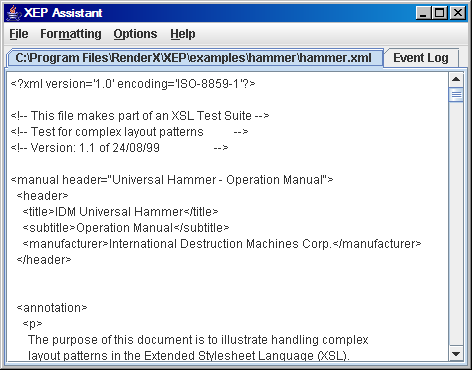
The file is opened within IREn Assistant.
Figure 3.1. XML file displayed in IREn Assistant
3.3.2. Formatting a File
Once an XML file is open, it must first be "transformed" before it can be formatted to PDF, PostScript, AFP, SVG, XPS, XHTML or PPML output. "Transforming" refers to the assignment of various settings required to apply an XSL stylesheet to your XML file. The result of the transforming is that the XML file is transformed into an XSL-FO. The XSL-FO is than formatted to your final output format (PDF, PS, AFP, SVG, XPS, XHTML or PPML).
To format an XML file:
-
From the main menu, click Formatting.
The Formatting menu is displayed.
-
From the Formatting menu, click Start.**
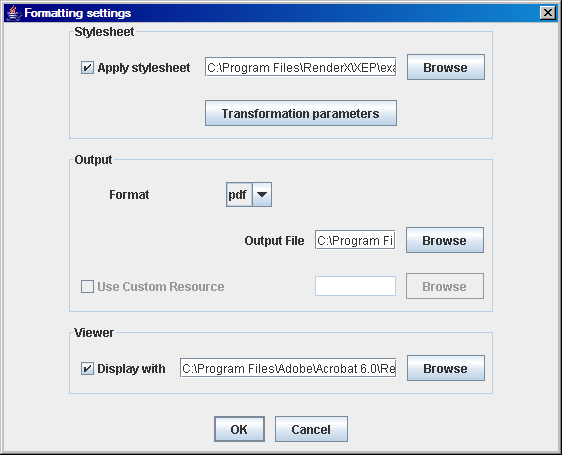
The Formatting settings dialog box appears.
Figure 3.2. Formatting settings dialog box
-
Set the desired settings as described in the following table.
Table 3.1. Formatting Settings
Parameter
-
Click OK to format the file, and Cancel to cancel the formatting.
To add XSL parameters:
-
From the Formatting settings dialog box, click the Transformation parameters button (only enabled when the Apply stylesheet checkbox is selected).
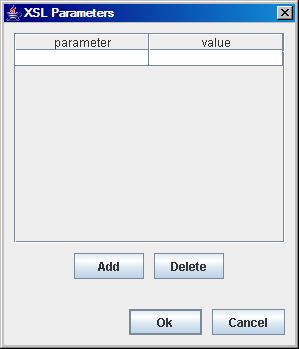
The XSL Parameters dialog box appears.
Figure 3.3. XSL Parameters
-
Fill in the fields as described in the following table:
Table 3.2. XSL Parameters
Field Description parameter The name of the variable used in the XSL file to represent a parameter value. value The value corresponding to the variable. -
Click Add to add a new parameter, or highlight a parameter and click Delete to delete the selected parameter.
-
Click OK to apply changes, or click Cancel to close the dialog box without applying your changes.
To cancel formatting:
-
From the main menu, select Formatting.
The Formatting menu is displayed.
-
Select Stop.
Formatting is canceled.